Effects
Effects, colour looks, transitions and speed ramps
Change the look and the timing of a clip. Every effect value can have keyframes.
Free in the editor
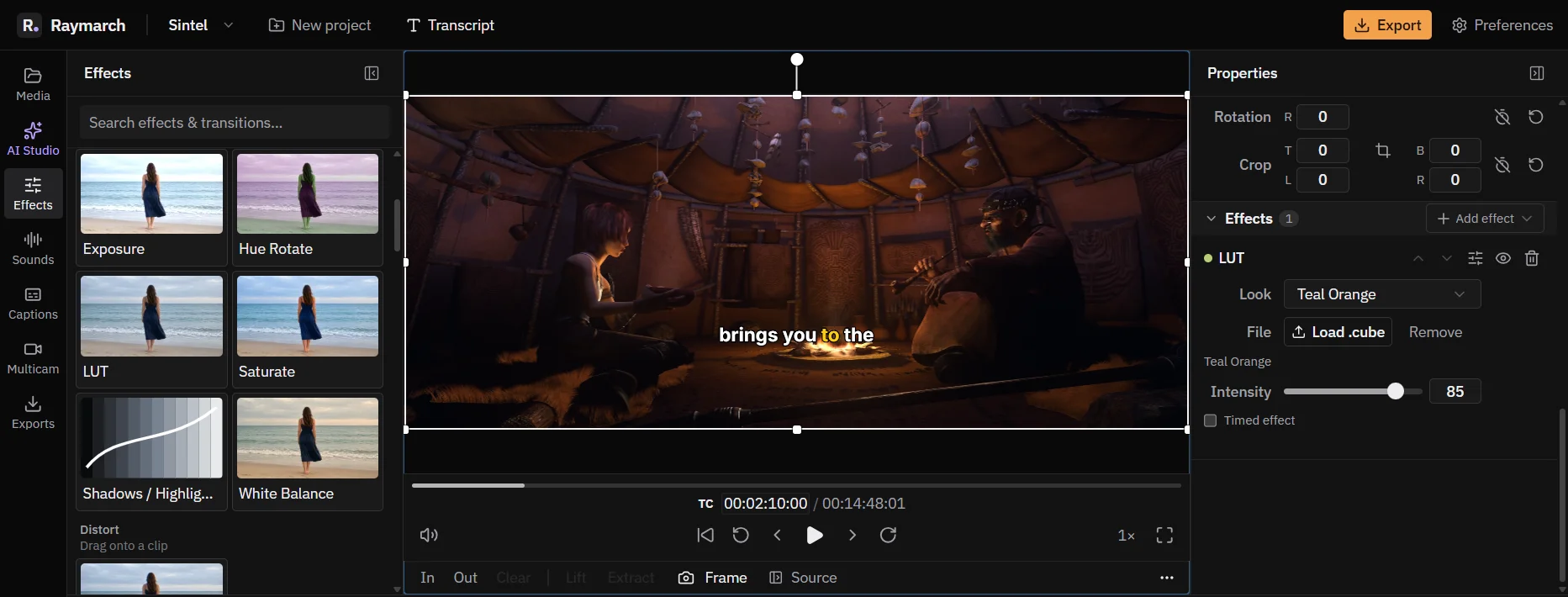
- 20 effects
- Blur, colour, distort and stylize.
- 8 looks
- Plus your own .cube files.
- 0.05× to 16×
- Speed ramps with a curve editor.
Effects
20 video effects
Drag an effect onto a clip. Every number in an effect can have keyframes, so an effect can change over time.
- Blur: Blur and Sharpen.
- Colour: Brightness, Contrast, Exposure, Hue Rotate, LUT, Saturate, Shadows / Highlights and White Balance.
- Distort: Chromatic Aberration.
- Stylize: Dither, Duotone, Film Grain, Glow, Grayscale, Invert, Pixelate, Sepia and Vignette.
Looks
Colour looks and your own LUTs
There are 8 built-in looks: Teal Orange, Warm, Cool, B&W Contrast, Film Fade, High Contrast, Pastel and Night. Set the intensity of each look.
You can also load your own .cube file. A .cube file is a standard colour look file from other editors and cameras.
Motion
11 motion presets
Zoom In, Zoom Out, Spin In, Spin Out, Expand, Slide In Left, Slide In Right, Shake, Flicker, Fade In and Fade Out. Drag a preset onto a clip, then move or resize its timing.
Transitions
Transitions and blend modes
- Transitions: Crossfade, Dissolve, Wipe Left, Wipe Right, Wipe Up and Wipe Down.
- Blend modes: Normal, Add, Multiply, Screen and Overlay.
- Adjustment layers apply their effects to every track below them.
Speed
Speed ramps with a curve editor
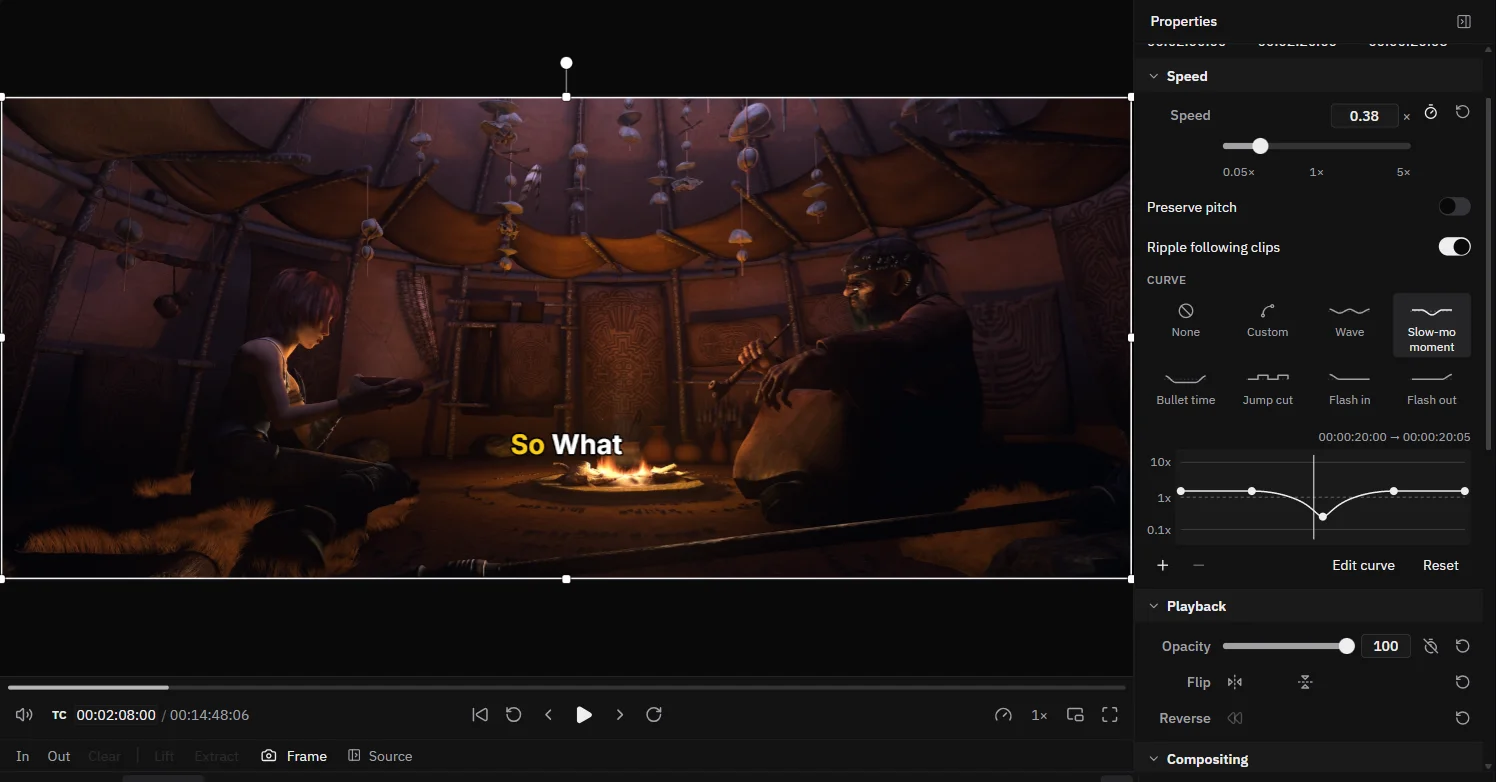
A speed ramp changes the speed of a clip over time. Speed goes from 0.05× to 16×.
- Presets: Wave, Slow-mo moment, Bullet time, Jump cut, Flash in and Flash out.
- Curve editor: add, move and remove points on the speed curve.
- Preserve pitch: keep voices at their normal pitch when the speed changes.
- Ripple following clips: later clips move when the clip gets longer or shorter.
How it works
How to add a speed ramp to a clip
- 01
Select the clip
Click the clip on the timeline.
- 02
Open Speed
Open the Speed section in the Properties panel.
- 03
Pick a curve
Click a preset, such as Slow-mo moment.
- 04
Shape it
Move the points on the curve until the timing is right.
Use cases
What you can make with it
Action moments
Slow down the key moment, then speed up again.
Colour
Give all clips one look with an adjustment layer.
Social video
Zoom and shake presets for energy.
Matching footage
Load the .cube file from your camera maker.
Specifications
Details
- Effects
- 20
- Motion presets
- 11
- Built-in looks
- 8, plus .cube files
- Transitions
- 6
- Blend modes
- Normal, Add, Multiply, Screen, Overlay
- Speed
- 0.05× to 16×, curve editor, 6 presets
- Keyframes
- Every effect number
- Plan
- Free
Frequently asked questions
Can I use my own LUT?
Yes. Load a .cube file in the LUT effect.
Does the voice change pitch when I speed up a clip?
Only if Preserve pitch is off. Turn it on to keep the normal pitch.
Can effects change over time?
Yes. Every number in an effect can have keyframes.
Are effects free?
Yes. All effects, looks, transitions and speed ramps are free in the editor.
Related features
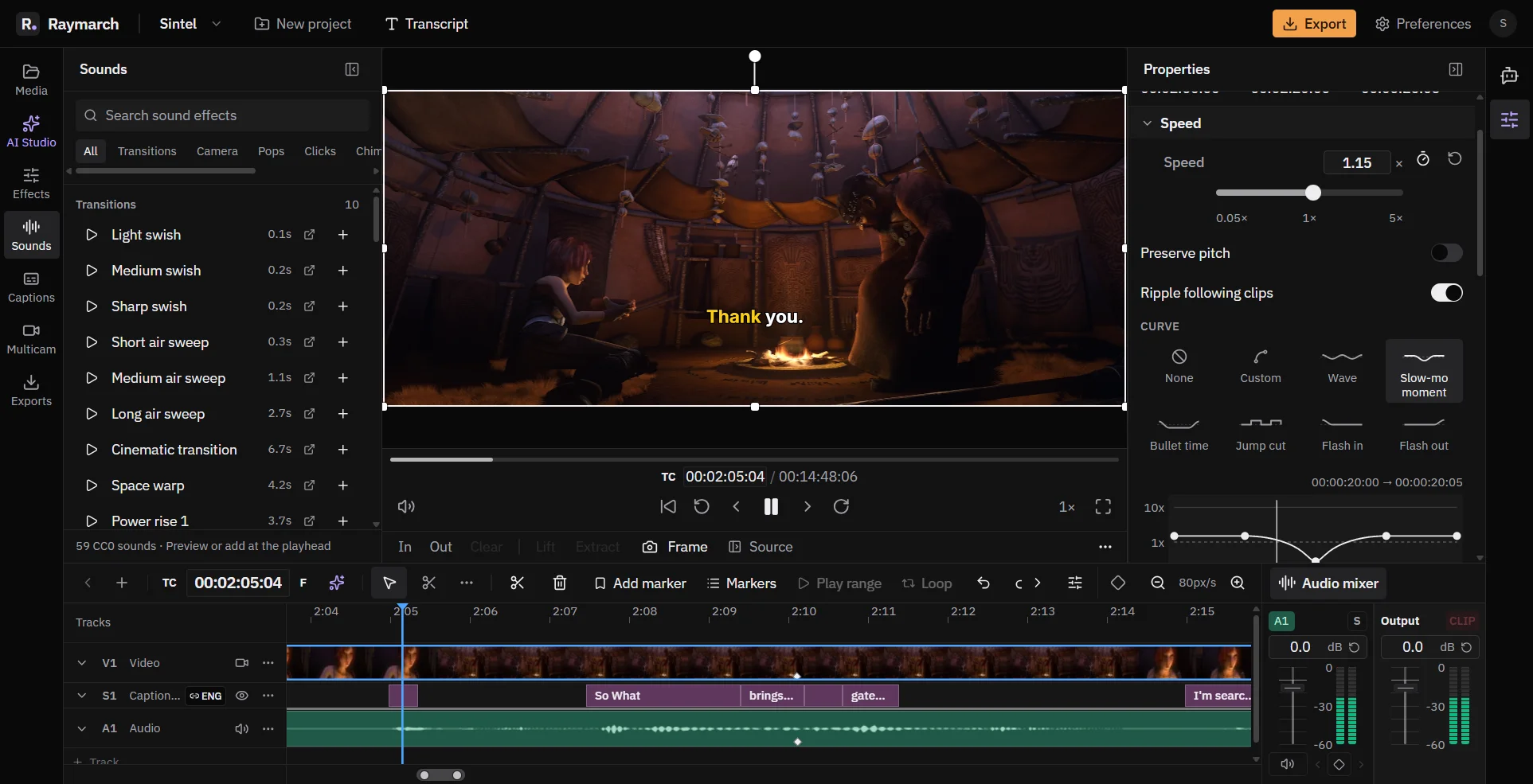
A free online video editor with a full timeline
Raymarch is a non-linear video editor in your browser. Edit on many tracks with professional trim tools and keyframes.
Free in the editor
An audio mixer, sound effects and multi-track files
Mix your audio in the same editor. Raymarch also plays audio formats that browsers usually cannot play.
Free in the editor
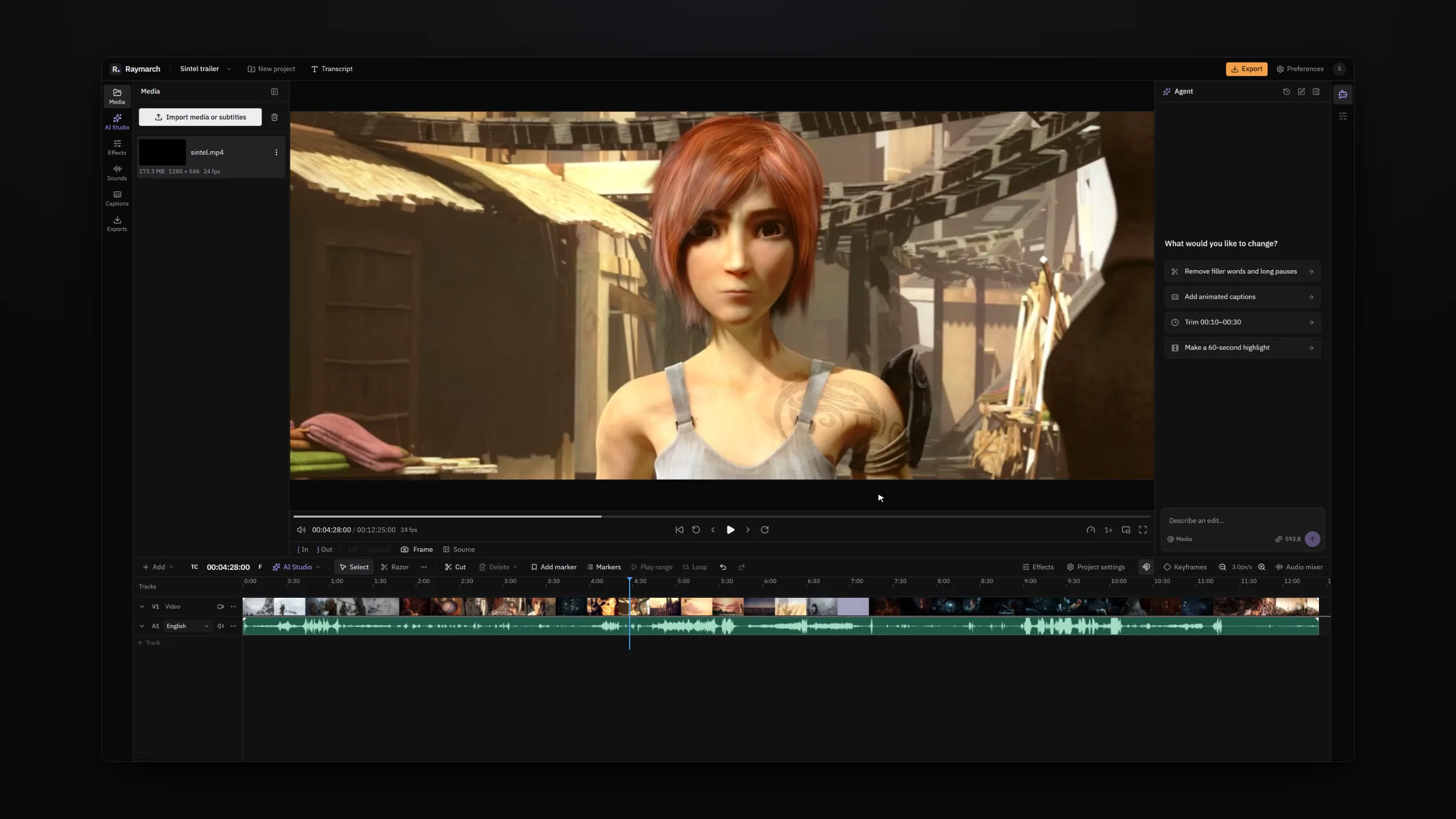
An AI video editing agent that works on your timeline
Tell the agent what to change in plain words. It edits your project one step at a time, and you can undo each step.
Pro plan
Start editing in your browser
The editor is free. No download is necessary.