Text-based editing
Edit video by editing the transcript
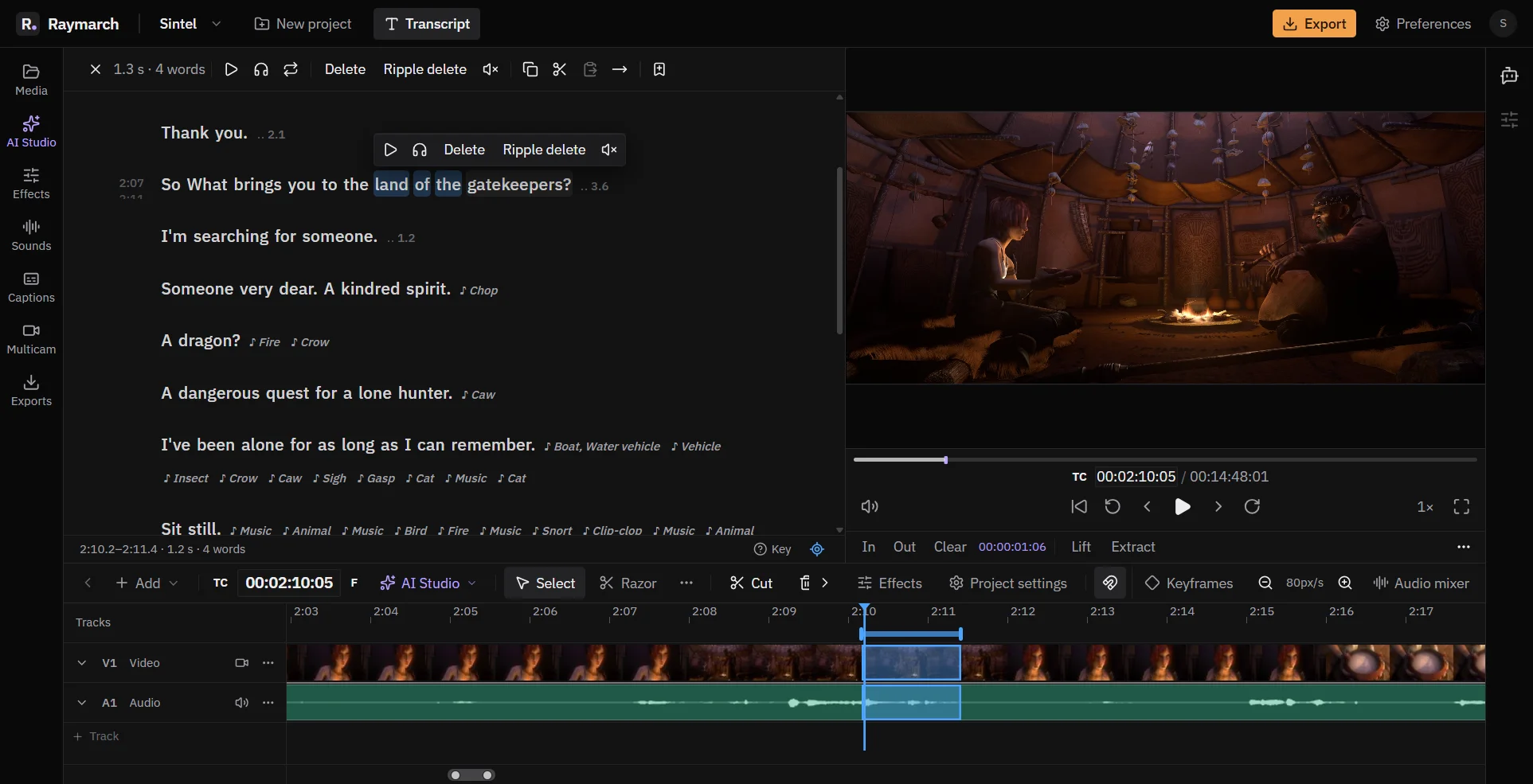
Delete words in the text, and Raymarch cuts the same moments from the video. It works on long recordings from your computer.
Pro plan
- Text and timeline
- Every text edit is a real cut on the timeline.
- 26 languages
- Choose the spoken language before you start.
- Your files
- Raymarch opens the video from your disk. It does not upload the video file.
Cut by text
Select words, then delete them
Click a word to select it. Shift-click another word to select everything between them. A small menu shows the actions.
- Delete removes the words and leaves a gap.
- Ripple delete removes the words and closes the gap.
- Mute stops the sound of the words. The timing stays the same.
- Play and listen to the selection before you cut.
Rearrange
Move, copy and keep passages
- Copy, cut, paste and move passages of text. The video moves with them.
- Keep only the selected moments. Use this to make a highlight.
- Restore deleted words at any time.
- Find text with Ctrl+F (⌘F on a Mac).
Speakers
Know who speaks
Raymarch detects the speakers in the recording and labels each paragraph. You can rename speakers, merge two speakers into one, and change the speaker of a passage.
Clean up
Remove fillers and long pauses in one pass
The Clean up panel finds filler words, long pauses, short replies and retakes. You review the results, then apply them in one step.
Learn about Clean up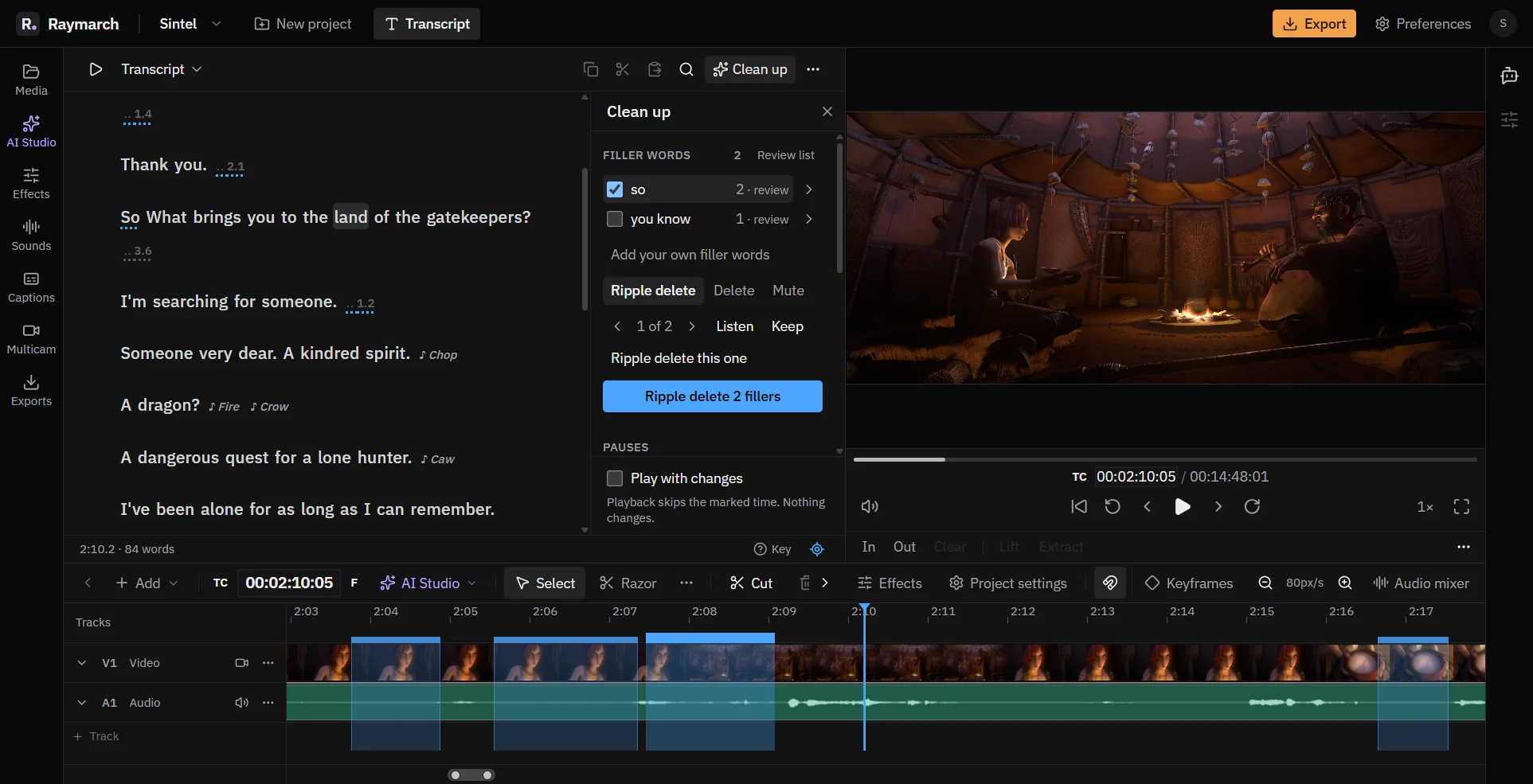
Timeline
The timeline is always in sync
The transcript and the timeline show the same edit. Open the timeline to move or trim any cut by hand, or to add music and titles.
How it works
How to edit a video by its transcript
- 01
Import the video
Open a video file from your computer. Long recordings work.
- 02
Transcribe
Choose the spoken language and start the transcription.
- 03
Edit the text
Select the words that you do not need. Press Delete or Ripple delete.
- 04
Check and export
Check the cuts on the timeline, then export.
Use cases
What you can make with it
Talking-head videos
Remove mistakes and repeats by reading the text.
Podcasts and interviews
Find a topic with Find and cut around it.
Lectures and courses
Remove long pauses and off-topic parts.
Webinars
Keep only the useful moments for a short version.
Specifications
Details
- Languages
- Bulgarian, Croatian, Czech, Danish, Dutch, English, Estonian, Finnish, French, German, Greek, Hungarian, Italian, Japanese, Latvian, Lithuanian, Maltese, Polish, Portuguese, Romanian, Russian, Slovak, Slovenian, Spanish, Swedish, Ukrainian
- Recording length
- Up to 4 hours for one transcription
- Text actions
- Delete, Ripple delete, Mute, Keep only, Copy, Cut, Paste, Move, Restore
- Find
- Ctrl+F, or ⌘F on a Mac
- Speakers
- Detect, rename, merge and assign
- Plan
- Pro
Frequently asked questions
Does Raymarch upload my video?
No. Raymarch opens the video file from your computer.
What is the difference between Delete and Ripple delete?
Delete removes the words and leaves a gap. Ripple delete removes the words and closes the gap.
Can I fix a cut by hand?
Yes. Each text edit is a real cut on the timeline. Move or trim it there.
Which languages can I use?
Raymarch transcribes 26 languages. You choose the language before you start.
How long can a recording be?
Up to 4 hours for one transcription.
Which plan do I need?
Text-based editing is part of the Pro plan. The timeline editor is free.
Related features
Remove filler words and long pauses
The Clean up panel finds the parts of a talk that you usually cut by hand. You check the results, then apply them.
Pro plan
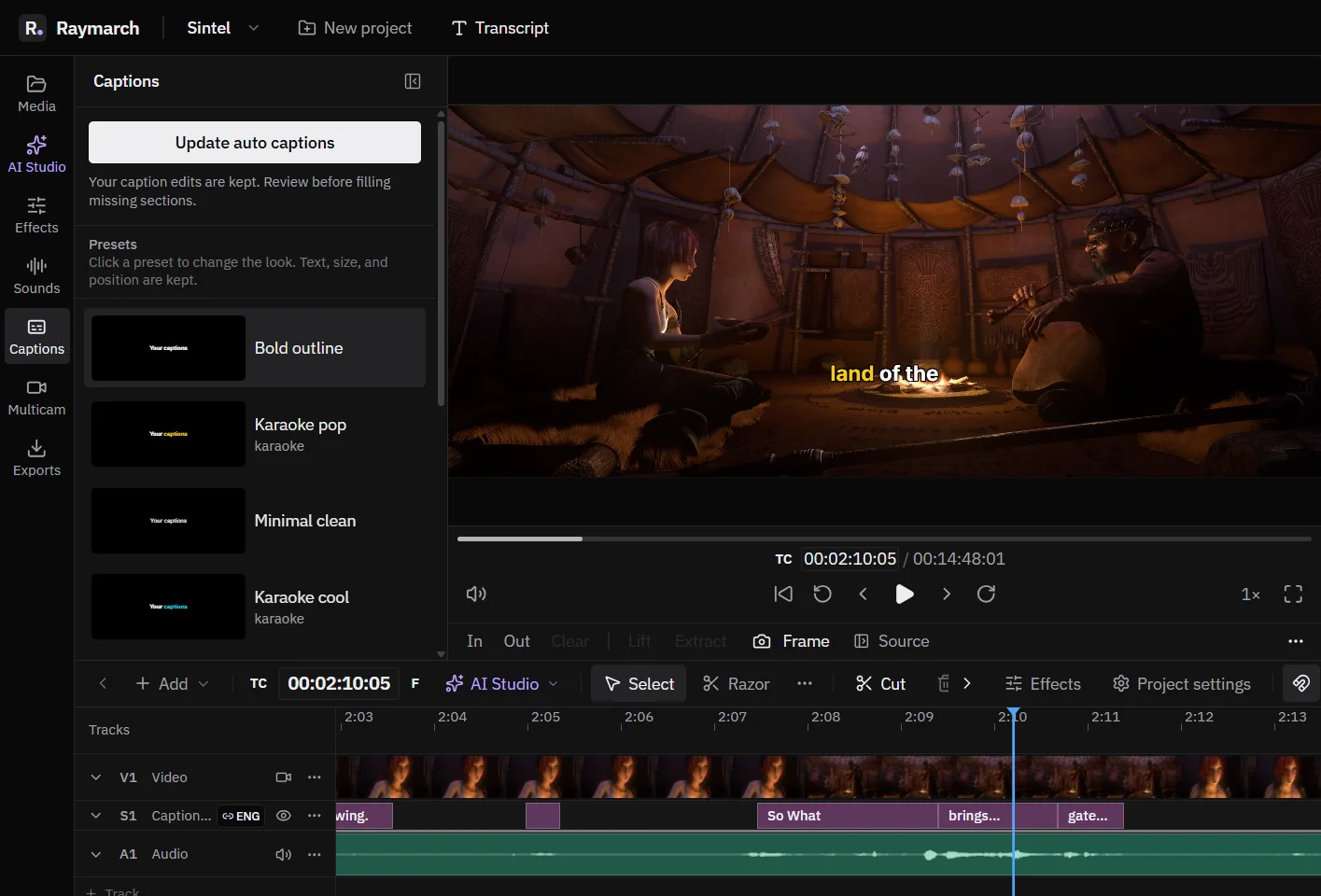
Automatic captions with word highlights
Make captions from the transcript in one step. Style them, animate each word, and export them.
Pro plan
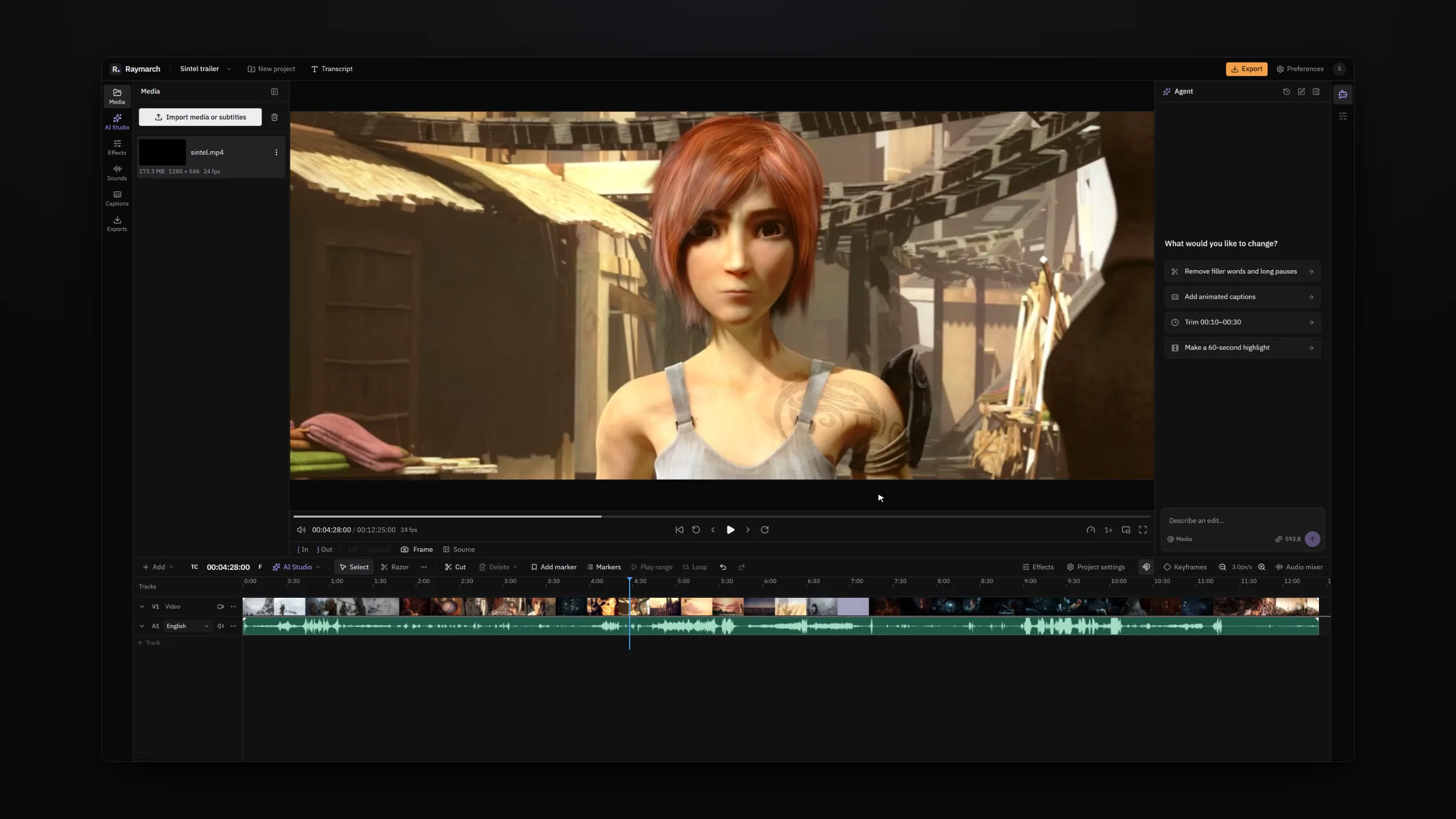
An AI video editing agent that works on your timeline
Tell the agent what to change in plain words. It edits your project one step at a time, and you can undo each step.
Pro plan
Start editing with Raymarch Pro
Sign up and choose the Pro plan to use this feature. The timeline editor is free.