AI Studio
Make images and video clips with AI, inside your editor
Create an image or a short clip from a prompt, an image or a video. Then use it on your timeline.
Pro plan
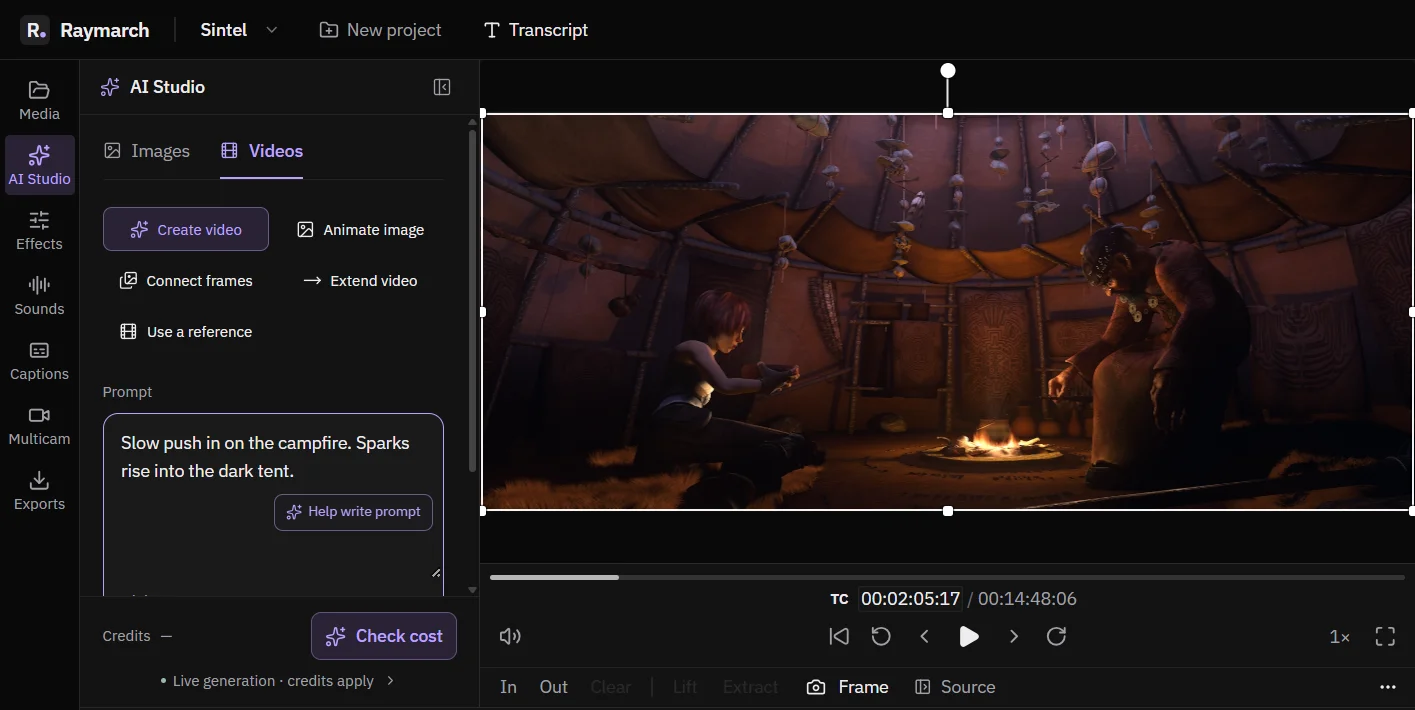
- 7 modes
- Two image modes and five video modes.
- Cost first
- See the cost in credits before you approve.
- In your project
- Each result goes into your project media.
Images
Create and edit images
- Create image (text to image): describe the image that you want.
- Edit image: change an image that you already have, with a text prompt. For example, remove people from a street.
- Shapes: 16:9, 9:16, 1:1, 4:3 and 3:4.
Video
Five ways to make a video clip
- Create video (text to video): describe the shot.
- Animate image (image to video): the clip starts from your image.
- Connect frames: give a start frame and an end frame. The AI makes the motion between them.
- Extend video: continue a clip for 2 to 20 more seconds. The new part goes right after the clip on your timeline.
- Use a reference: carry the subject of a reference video into a new scene.
Settings
Set the shape, length and quality
Choose the shape, the length and the resolution before you generate. Video clips are 1 to 15 seconds long, up to 1080p. Some modes also make sound with the video.
Click Help write prompt to turn a short idea into a detailed prompt.
Cost
See the cost before you generate
Click Check cost to see an estimate in credits. Nothing runs until you click Approve and generate. The final charge follows the actual cost of the generation.
Results
Results go straight into your project
Raymarch saves each result on your computer and adds it to your project media. Drag it onto the timeline like any other clip.
How it works
How to make a video clip with AI
- 01
Open AI Studio
Click AI Studio in the left panel of the editor.
- 02
Choose a mode
Pick an image mode or a video mode.
- 03
Write the prompt
Describe the result. Add a source image or clip if the mode needs one.
- 04
Check the cost
Click Check cost, then Approve and generate.
- 05
Use the result
Drag the result from your media onto the timeline.
Use cases
What you can make with it
B-roll
Make a short shot that you did not film.
Title backgrounds
Make a still image for a title card.
Shots that end too early
Extend the clip by a few seconds.
Still photos
Animate a photo for a story or a reel.
Clean plates
Remove people or objects from a still image.
Specifications
Details
- Image modes
- Create image, Edit image
- Video modes
- Create video, Animate image, Connect frames, Extend video, Use a reference
- Image shapes
- 16:9, 9:16, 1:1, 4:3, 3:4
- Video shapes
- 16:9, 9:16, 1:1, 4:3, 3:4, 21:9
- Clip length
- 1 to 15 seconds. Extend adds 2 to 20 seconds.
- Resolution
- Up to 1080p
- Plan
- Pro, uses AI credits
Frequently asked questions
Do I see the price first?
Yes. You see an estimate in credits before you approve.
Where do the results go?
Into your project media. Drag them onto the timeline.
Can AI Studio extend my own footage?
Yes. Extend video continues a clip for 2 to 20 seconds and puts the new part after it.
Which plan do I need?
AI Studio is part of the Pro plan. It uses AI credits.
Related features
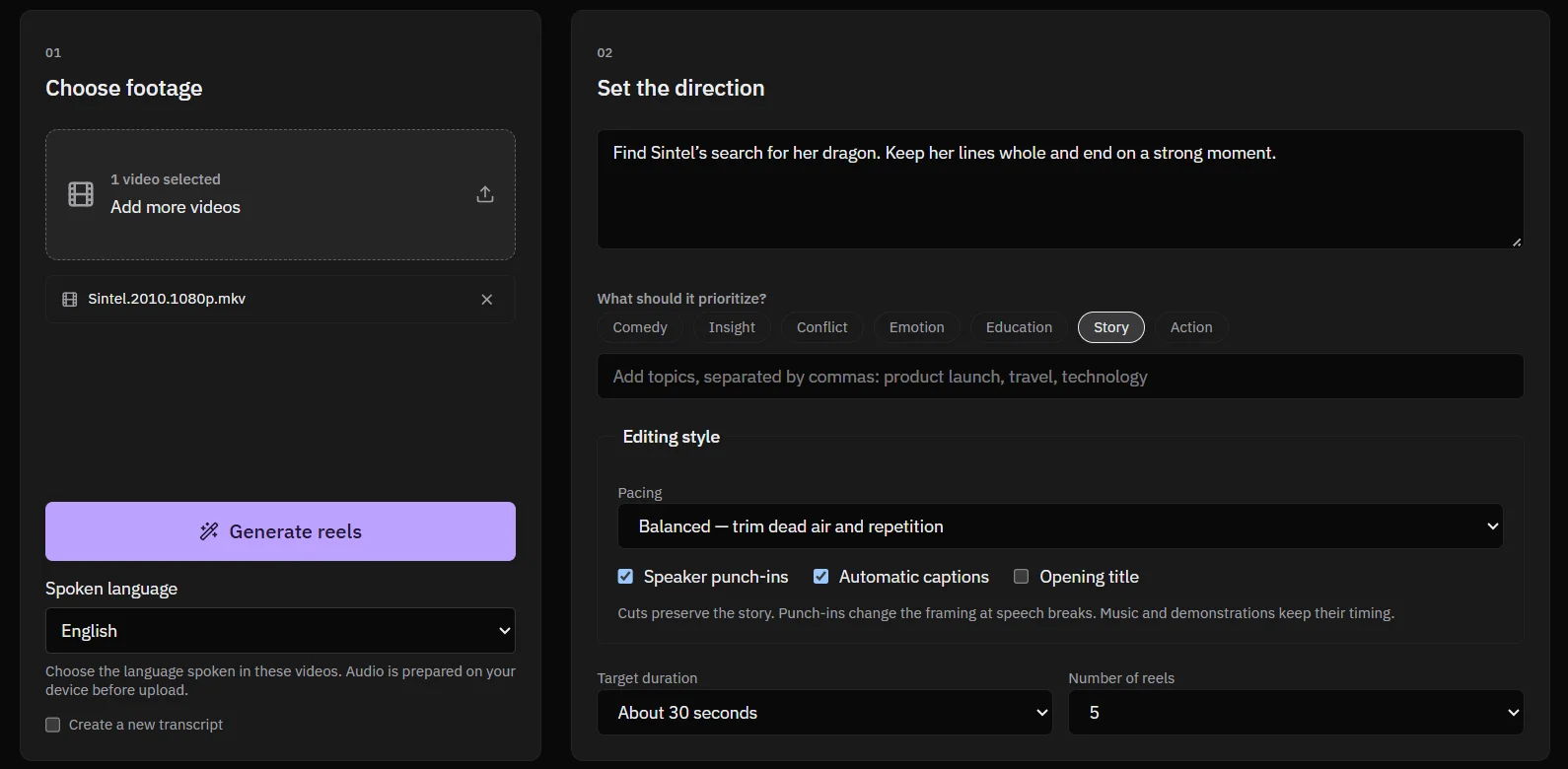
Turn long videos into vertical reels
Give Raymarch a long video and a short brief. It finds strong moments and makes 9:16 reels that you can edit.
Pro plan
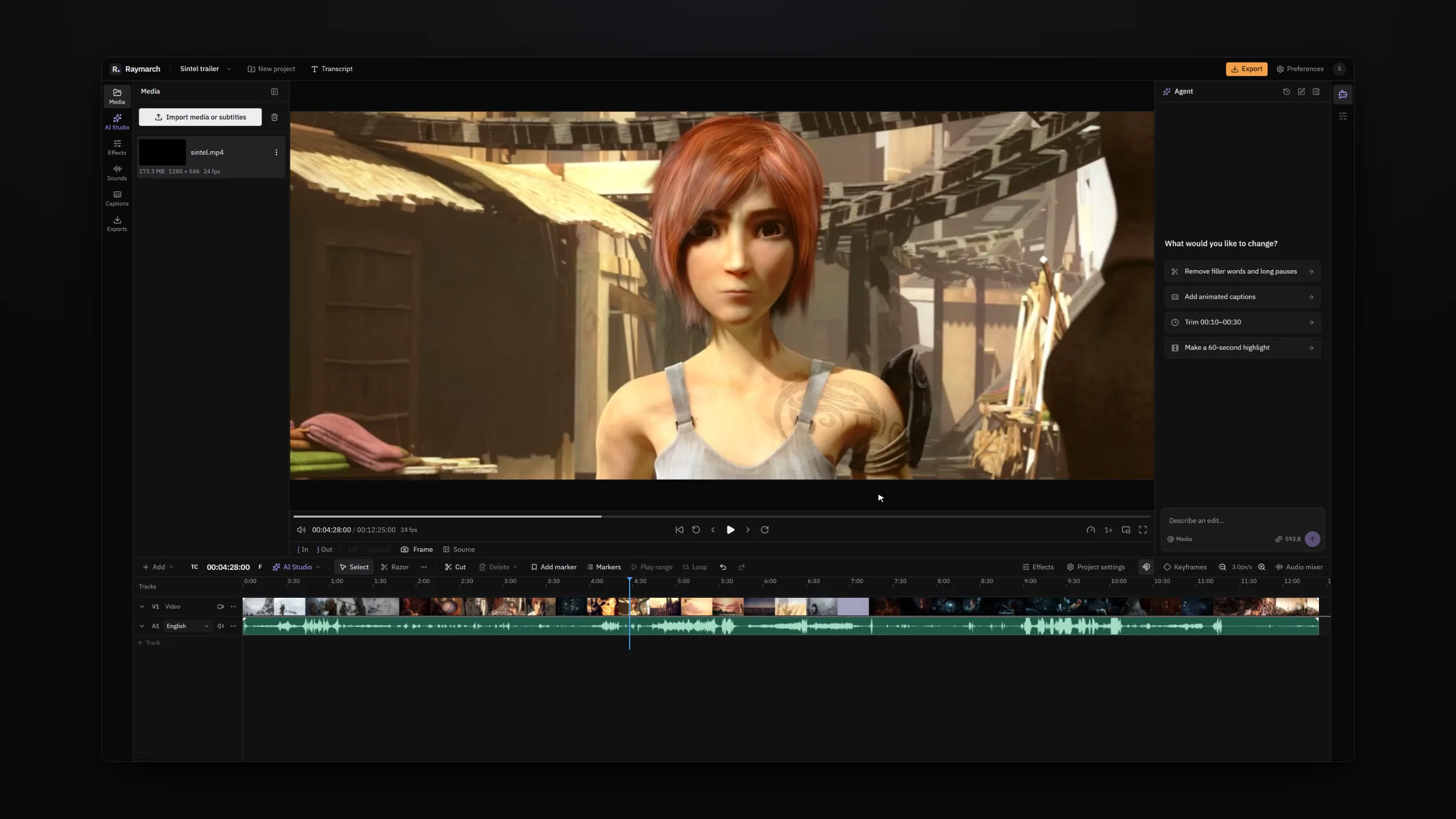
An AI video editing agent that works on your timeline
Tell the agent what to change in plain words. It edits your project one step at a time, and you can undo each step.
Pro plan
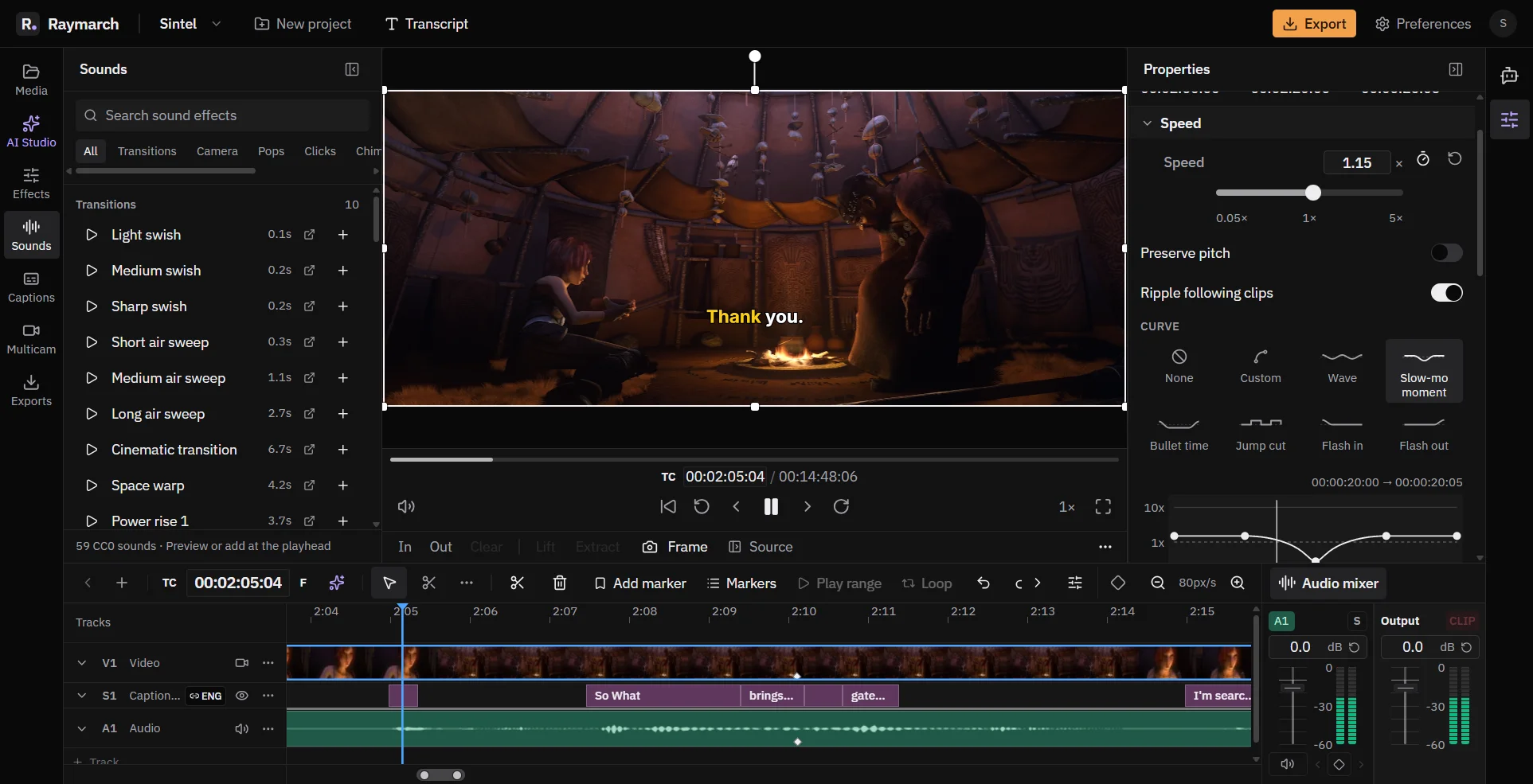
A free online video editor with a full timeline
Raymarch is a non-linear video editor in your browser. Edit on many tracks with professional trim tools and keyframes.
Free in the editor
Start editing with Raymarch Pro
Sign up and choose the Pro plan to use this feature. The timeline editor is free.